
User Manual
Download user manual : English version
FAQ
1Who’s connected?
The menu on the far left shows, among other things, the list of
participants who have joined the ongoing virtual session. There
are two types of roles:
• Moderator (rounded square icon): allows you to manage
everything;
• Normal participant (round icon)
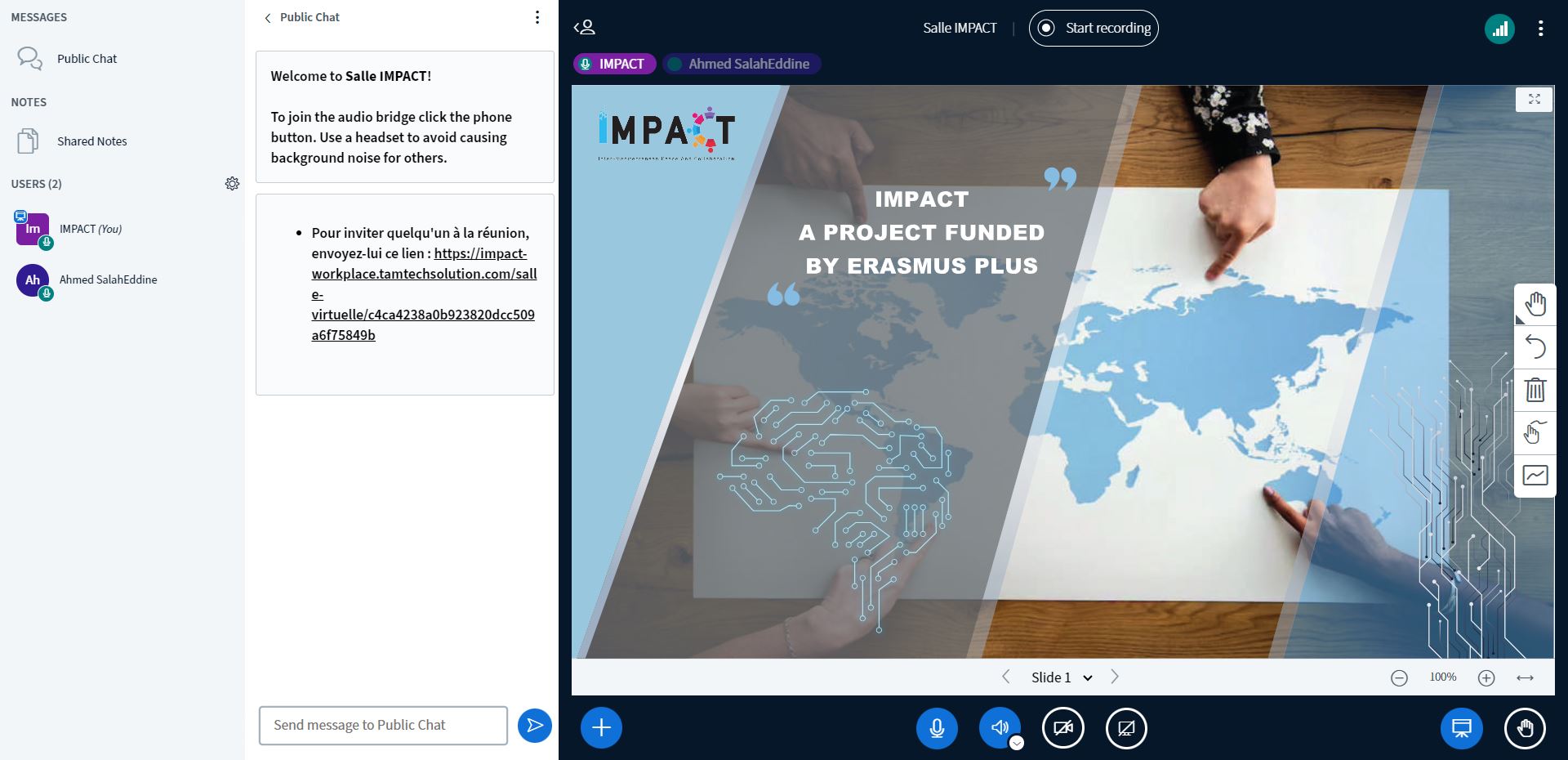
• The little white board on a blue background at the top left indicates the presenter;
• Microphone indicates that the participant's microphone is on and can speak and have spoken interactions;
• The headset shows that the participant is an attendee (whose microphone is muted by default).
2 Public Chat
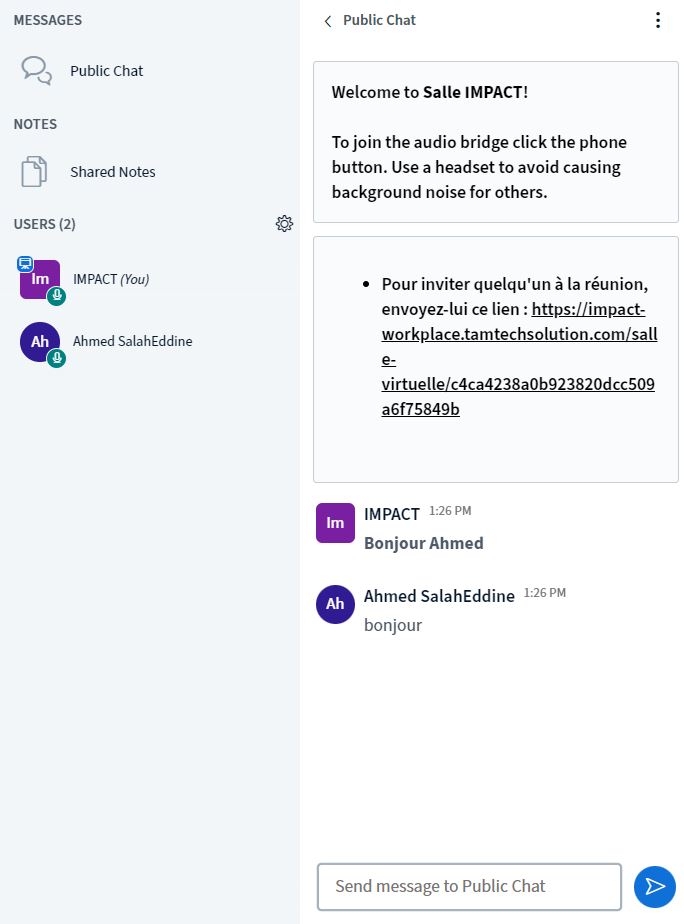
Besides the voice it is possible to communicate in writing. The "Public Discussion" window is opened when you log in. It is possible to reduce it and display it again via the menu by clicking on Public discussion.
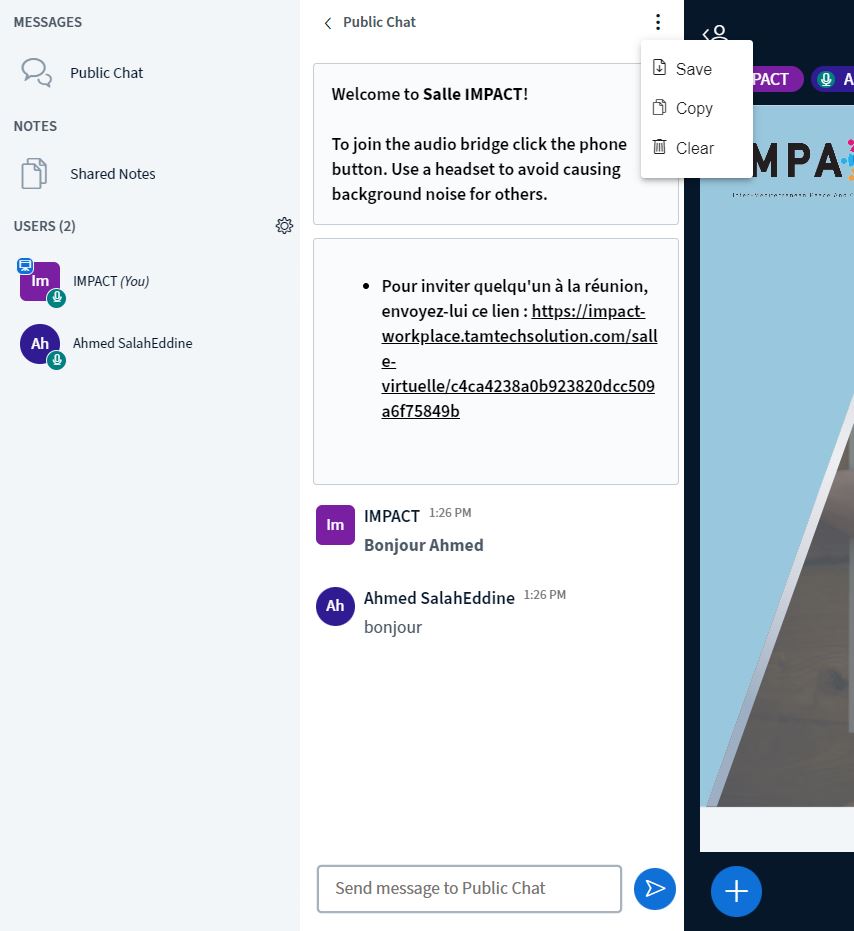
• Save the text of the discussion in an HTML format
• Copy it to clipboard
• To erase it
3Shared Notes
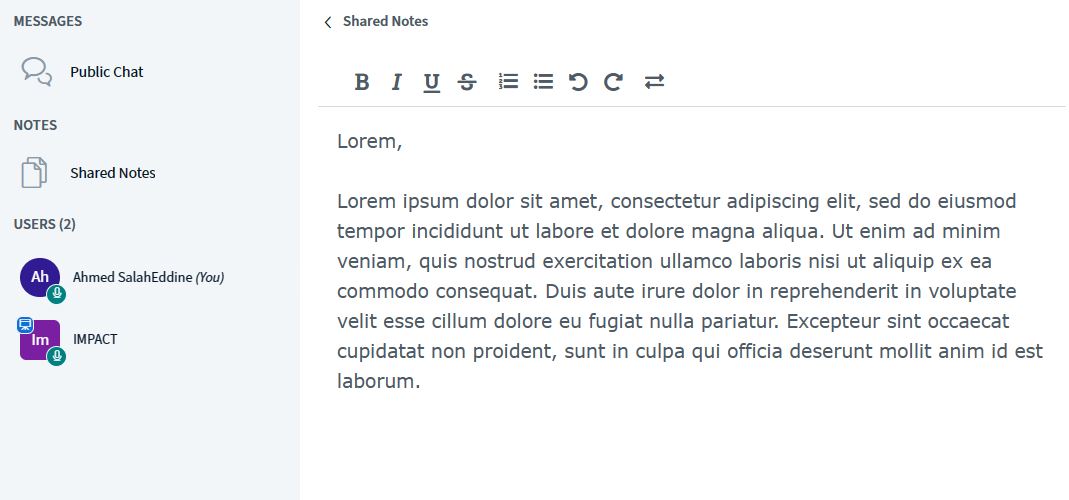
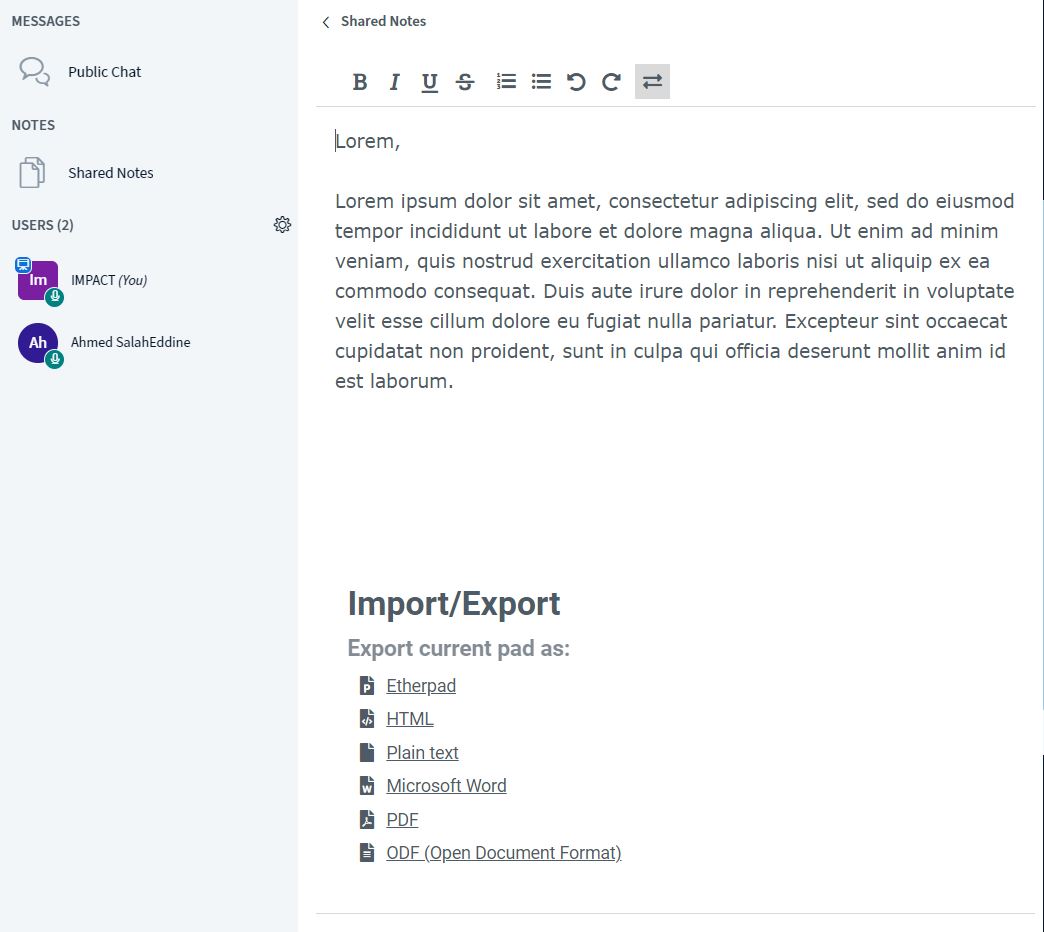
From the left menu you can open the shared notes window. Similar to a simplified Framapad, each participant can write at the same time, forming a shared notes documents composed from all the attendees’ notes
4 Presentations
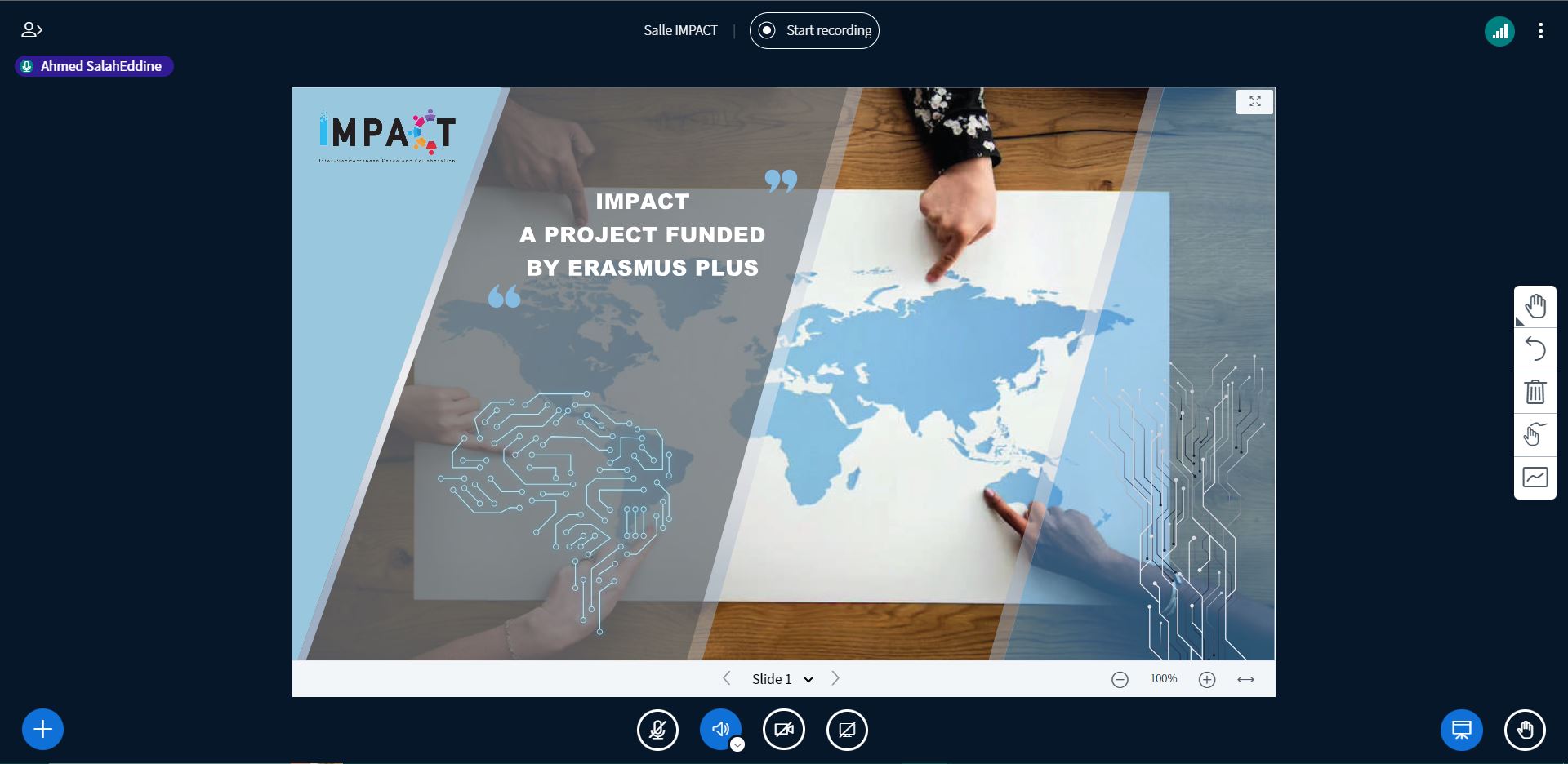
The main area on the right is the space dedicated to
displaying Presentations.
Only one person at a time can lead the presentation, they
must have the status of “presenter”. A moderator can
become a presenter himself (the previous presenter then
automatically loses control) and can give control to a simple
user.
You can display a presentation (PDF format or from an office
suite, ODF and Microsoft). With the latter you can:
1. Switch slides or pages
2. Zoom and view in full screen
3. Add annotations
5 Audio and video controls
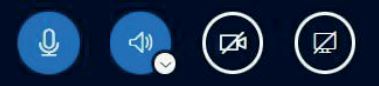
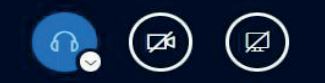
Depending on your role you will have certain icons located on
the presentation in the middle.
Depending on the case, you can have two to four icons.
• Mute/Allow to speak: you just mute your microphone but
you can easily reactivate it. Only if you have activated your
microphone.
• Leave Audio/Rejoin Audio: You mute the sound, so you can't
hear anything. By joining you can choose to be a spectator or
to activate your microphone (entry into the room).
• Share webcam: to activate your webcam and be seen by
other participants.
• Share your screen: Only if you are a presenter, you can share
a particular window, a browser tab (Chrome and Chromium)
or your entire screen.
6 Bouton Actions
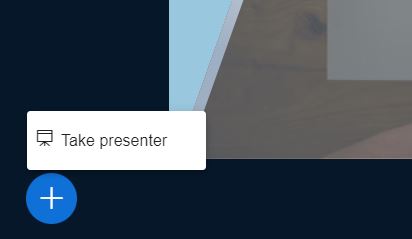
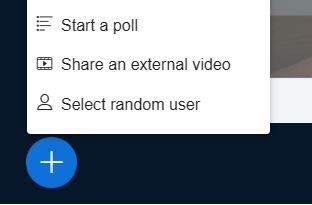
In the lower left corner of the presentation, the button with a plus sign gives access to presenter actions. Moderators always have access to this button. It allows them to become a presenter (the previous one immediately loses this status).
7 Menu options
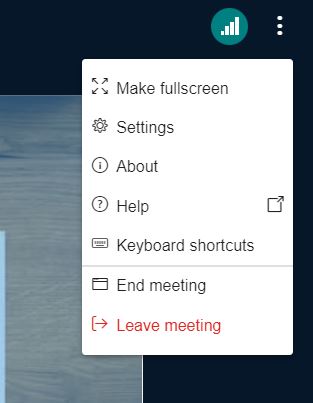
In the upper right corner is a 3-dot button opening the options
menu.
Hereafter are the exit functions:
• End Meeting: The room is closed and everyone is forced to
leave. Obviously, only a moderator has access to this function.
• Disconnection: to leave the room (return is possible).


8 Bouton Actions